MIB Browser
The MIB Browser is used to diagnose SNMP-enabled network devices and applications on the customer network. When applicable, it is available under the Network Tools menu for the selected dashboard.
The MIB Browser can access certain devices only. If invoked from a device dashboard, the MIB Browser can access that device only. If invoked from a Probe dashboard, the MIB Browser can access any device that the Probe can reach.
To use the MIB browser:
1. Access the MIB Browser.
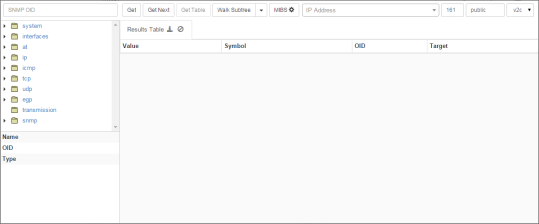
If applicable, following fields are prefilled with default values. These defaults vary depending on the device configuration. Typically the defaults are:
SNMP port is set to 161
SNMP community string is set to public
SNMP version is set to v2c
MIB is set to RFC1213-MIB, with the object tree to the left displaying the correct objects
2. Optionally change the default settings.
To change the MIB in use, click on the MIBs button to show available MIBS. Use the Search MIBs field to quickly search the available MIBs for the one you want. The Mitel Performance Analytics MIB browser is delivered many publically available MIBs. When satisfied, click Confirm to return to the MIB browser.
If the Mitel Performance Analytics MIB browser does not contain the MIB you want, see “"Adding MIBs".
If you are accessing the MIB Browser from a Probe select the device from the IP Address dropdown list. If you are accessing the MIB Browser from a device, the IP Address dropdown list is prefilled with device IP address.
3. Select an object from any of the displayed object tree.
4. Click Get or Get Table as required to fetch the data.
A new tab is created for table queries. The tab is labeled with the OID and the system host name.
Result tabs contain icons that allow you to:
Refresh the results
Clear the results
Download the results. Results are downloads as a .csv file.
Rotate the results; that is, for tables swap columns for rows
Close the tab
Clicking on any heading in the results of a table query highlights the object in the MIB object tree.
In addition, the MIB browser has buttons that allow you to:
Get the Next object on the device
Walk a Subtree