Assigning a License
Licensing is applied differently depending on the type of device. Some licensing is based on the total count of configured IPT users. Licensing for other devices is based on the total count of the device type.
You can assign a block of licenses to a container or a sub-container that has devices that need licensing. This is typically the customer’s root container.
Devices automatically contact their parent containers to acquire licenses. If their parent container does not have a license for them, then they contact the next higher container in the hierarchy until the root container is reached.
Do the following steps:
1. Access the dashboard for a container requiring licensing.
2. From the dashboard, select Licenses under the System Administration menu.
The Licensing window is displayed. The following is an example.
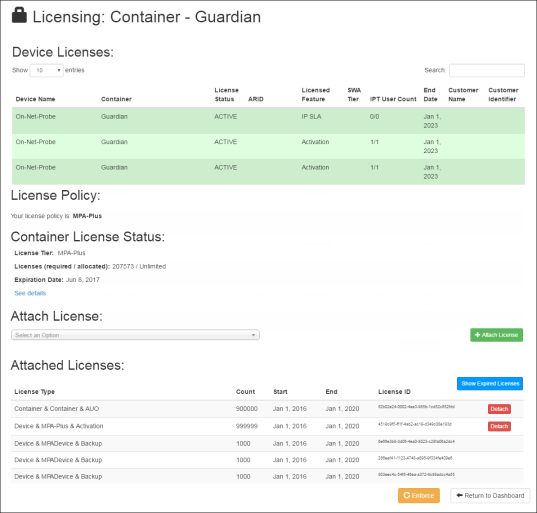
The top part of the panel summarizes:
License information about all the devices in this container and in all subcontainers
Policy information applied to this container
You can also display detailed information about each license applied to this container.
The bottom part of the panel lists the currently attached licenses.
3. From the Attach License dropdown list, select one of the available license files.
4. Click the Attach License button.
5. If the license is non-transferable, a confirmation dialog box appears. Non-transferable licenses cannot be reassigned to other devices. Confirm your intent.
If successful, the licensing window confirms that the license has been assigned by listing it in the bottom part of the window.
The license is automatically enforced.
If multiple licenses are required then repeat the license assignment process as necessary.