Moving a Container Structure
Moving a container applies to all objects that it contains, including users, devices, and subcontainers.
Do the following steps:
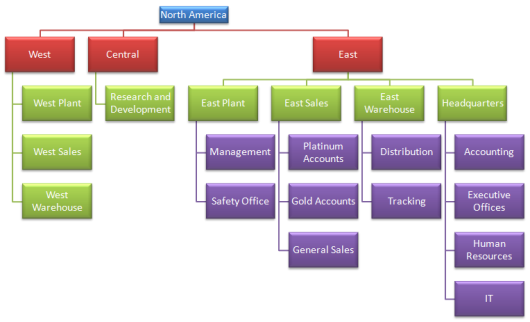
1. Access the dashboard of the container at the root of the structure you want to move. For example in the following structure, accessing the dashboard of the Headquarters container allows you to move the Headquarters container, its devices, its subcontainers, and all of their devices.
2. Select Container Settings under the System Administration menu.
The container’s Settings page is displayed.
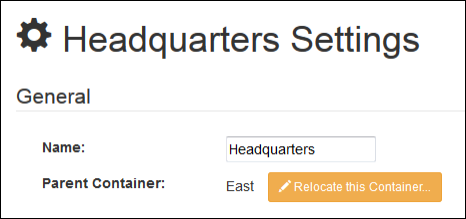
3. Under General, the name of the container appears as well as its parent container. Click the Relocate this Container… button. The Relocate Container dialog appears.
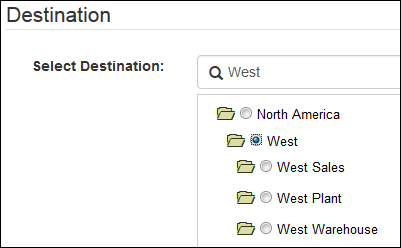
4. In the Select Destination field, enter either the full name or the partial name of the new parent container, and click Search or press Enter.

The Relocate Container dialog is populated with a destination container structure.
Note: The Relocate Container dialog does not display a destination container structure unless you click Search or press Enter after entering the full or partial name of the new parent container in the Select Destination field.
5. Select the new parent container and click Next.
The Relocate Confirmation dialog is displayed listing possible concerns associated with moving the container.
6. Select Accept and continue and click Apply to move the container.
Licensing is automatically enforced on the moved container.